How to make African-Influenced Peanut Stew (Vegan) in Instant Pot – VR 180 3D Cooking Video

This video is VR 180 3D, best viewed in a VR headset such as the Oculus Quest 2.

Please subscribe :) youtube.com/geoffmobile

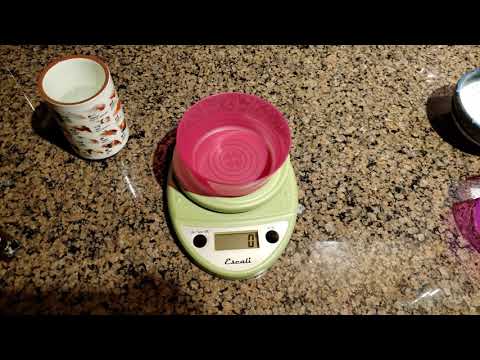
In this video, Geoff from geoffmobile.com shows how to make an African-Influenced Peanut Stew (Vegan) in the Instant Pot pressure cooker. This was recorded in 3D 180 VR using the Vuze XR – a 180 3D VR camera.

African Peanut Stew – Geoff’s version

Cookbook Author Megan Gilmore writes:
“Loaded with nutrients, African peanut stew has a unique flavor that my family finds addictive. The combination of ginger and peanut butter reminds me of a slightly spicy Thai peanut sauce, with an earthy sweetness from the sweet potato. I use red quinoa in this stew because it retains its texture better than other varieties, but any color will do for the added plant-based protein.”

1 tablespoon extra-virgin olive oil
1 yellow onion, chopped
2 cloves garlic, minced (can use 3 cloves if a larger portion is desired)
2 tablespoons minced fresh ginger (2-inch knob) or 1 tsp dried powdered ginger
2 sweet potatoes, peeled and cut into 1-inch chunks – use larger chunks if desired (can use 3 sweet potatoes if a larger portion is desired)
One 15-ounce can diced tomatoes or a large can of tomato sauce
½ cup all-natural peanut butter
2 teaspoons fine sea salt (optional – can use a smaller amount such as 1/8 tsp or omit entirely if desired)
½ teaspoon red pepper flakes (optional, only use if you want a spicy dish)
1/2 cup uncooked quinoa, rinsed (or could use up to 1 cup uncooked quinoa if a larger portion is desired)
3 to 4 cups water
2 cups finely chopped kale, stems removed, or 2 cups frozen chopped kale (or spinach)

Important note: Please do *not* stir the pot after adding the peanut butter and quinoa. Keeping the peanut butter and quinoa on top without stirring, is a good way to prevent the dish from burning on the bottom.

Directions:

Press Sauté on medium/normal and add the olive oil to the Instant Pot. Once the oil is hot but not smoking, add the onion and sauté until softened, stirring frequently, about 2 minutes. Press Cancel and stir in the garlic and ginger while the pot is still hot.

Add 3 cups of the water, the sweet potato, tomatoes with their juices/tomato sauce, peanut butter, salt (optional), red pepper flakes (optional), and quinoa on top, all without stirring. (The peanut butter will blend in as the soup cooks.) Secure the lid and move the steam release valve to Sealing. Select Manual/Pressure Cook to cook on high pressure for 7 minutes.

When the cooking cycle is complete, let the pressure naturally release for 10 minutes, then move the steam release valve to Venting to release any remaining pressure. When the floating valve drops, remove the lid. Stir in the kale, which should wilt quickly.

For a thicker stew, press some of the cooked sweet potatoes against the side of the pot and stir them in until you have a creamier texture. If you like a thinner soup, add up to 1 cup of the remaining water. Taste and adjust the seasoning as needed, and serve warm. Store leftovers in an airtight container in the fridge for 1 week

– Recipe adapted from Megan Gilmore – Thank you!!
“The Fresh and Healthy Instant Pot Cookbook by Megan Gilmore”
recipes.instantpot.com/author/thefreshandhealthyipcookbook/
detoxinista.com/
detoxinista.com/best-instant-pot-cookbook/

Here are my social links:
youtube.com/geoffmobile
twitter.com/gpeters
facebook.com/geoff.peters

Shout out to Chef Victor Bongo who makes a very famous African Peanut Soup (also very good – the recipe is available in his cookbook):
www.facebook.com/profile.php?id=100050287938039

Technical notes:
VR 180 3D video was captured in manual exposure setting (shutter 1/60, ISO 200), and exported in Auto/Optimal ProRes 422 from Vuze XR Studio. Video edited in Adobe Premiere (Legal Creative Cloud license) and exported as a 5.7k 3D stereoscopic side-by-side VR 180 H.264 video using “target bitrate” of 135 Mbps and “maximum bitrate” of 240 Mbps, at maximum rendering depth and maximum render quality.

For filming cooking videos I highly recommend using manual exposure on the Vuze XR (as the auto exposure often seems to overexpose the ingredients in the Instant Pot in cooking videos).

Live Sound during cooking was recorded using on-camera audio. Voiceover Audio was recorded later, using a Zoom H1 with Sennheiser ME-2 Lavalier microphone. Background music was created by Geoff Peters.

This VR 180 3D video was filmed using a Vuze XR camera.
Please watch using the Youtube App on an Oculus Quest 2 VR (Virtual Reality) headset for the best 3D experience!

Thanks for watching!
Cheers,
Geoff
geoffmobile.com

How to Send an Email at a Later Time or Day using Gmail (Schedule Send)

Here’s a quick tutorial on how to schedule an email to be sent at a later time or day using Gmail, using the “Schedule Send” feature. Very handy!

Please subscribe :) youtube.com/geoffmobile

Music Credit: Geoff Peters Trio

Thanks for watching! :)
Cheers,
Geoff
geoffmobile.com

How to Make Green Salsa Brown Rice with Chicken and Beans in Instant Pot – VR 180 3D Cooking Video

This video is VR 180 3D, best viewed in a VR headset such as the Oculus Quest 2.

Please subscribe :) youtube.com/geoffmobile

In this video, Geoff from geoffmobile.com shows how to make Green Salsa Brown Rice with Chicken and Beans in the Instant Pot pressure cooker. This was recorded in 3D 180 VR using the Vuze XR – a 180 3D VR camera.

Green Salsa Brown Rice with Chicken and Beans
Pressure Cooker Green Chile Chicken and Rice

1 1/2 lbs. boneless, skinless chicken thighs
salt and pepper for seasoning the chicken
1 tablespoon oil
1 cup diced onion
3 garlic cloves, minced
4-ounce can green chiles (optional)
1 teaspoon cumin
1 teaspoon ground coriander
1/8 teaspoon salt (or up to 1 teaspoon if you like it salty)
2 cups brown rice
12 – 18 ounce bottle of mild salsa verde or green chile sauce
1 – 2 cups chicken broth
15-ounce can white beans, rinsed

Optional Toppings: cheddar or pepper jack cheese, chopped avocado, chopped tomato, corn, cilantro, sour cream or yogurt, crushed tortilla

Season chicken with salt and pepper. Add oil into the pressure cooker pot. Using the sautee function, heat the oil until hot. Add chicken and brown 2-3 minutes on each side. Remove chicken from the pot and set on a plate.

Select saute on the pressure cooker and add onions (add an extra teaspoon of oil if the pot is dry). Cook until soft, about 2 to 4 minutes. Add garlic and stir for 30 seconds. Turn off pressure cooker. Add green chiles, cumin, coriander, salt. Pour salsa into a large liquid measuring cup and add chicken broth to equal a total of 3 1/2 cups of liquid. Pour liquid into the pot and scrape the brown bits from the bottom of the pot. Place chicken on top; do not stir. Add rice on top, and pat down but do not stir. Secure the lid and turn pressure release knob to a sealed position. Cook at high pressure for 27 minutes.

When cooking is complete, use a natural release.

Remove chicken to a cutting board and shred into bite-sized pieces. Return the chicken to the pot, add the white beans, and stir.

To serve, spoon into a bowl and add desired toppings.

– Recipe adapted by Geoff Peters from Barbara Schieving. Original Recipe Source:
www.pressurecookingtoday.com/pressure-cooker-green-chile-chicken-and-rice/

Here are my social links:
youtube.com/geoffmobile
twitter.com/gpeters
facebook.com/geoff.peters

Technical notes:
VR 180 3D video was captured in full automatic setting, and exported in Auto/Optimal ProRes 422 from Vuze XR Studio. Video edited in Adobe Premiere (Legal Creative Cloud license) and exported as a 5.7k 3D stereoscopic side-by-side VR 180 H.264 video using “target bitrate” of 135 Mbps and “maximum bitrate” of 240 Mbps, at maximum rendering depth and maximum render quality.

In the future, I will use manual exposure on the Vuze XR (as the auto exposure often seems to overexpose the ingredients in the Instant Pot in this video).

Live Sound during cooking was recorded using on-camera audio. Voiceover Audio was recorded later, using a Zoom H1 with Sennheiser ME-2 Lavalier microphone. Music of the Geoff Peters Trio was recorded previously on a Sony Minidisc live at a wedding.

This VR 180 3D video was filmed using a Vuze XR camera.
Please watch using the Youtube App on an Oculus Quest 2 VR (Virtual Reality) headset for the best 3D experience!

Thanks for watching!
Cheers,
Geoff
geoffmobile.com

Driving to Shaughnessy from Downtown Vancouver with Vuze XR VR 180

This video is VR 180 3D, best viewed in a VR headset such as the Oculus Quest 2.

Please subscribe :) youtube.com/geoffmobile

In this video, Geoff from geoffmobile.com from Downtown Vancouver to southbound on Oak Street.

Recorded March 19 2021.

The stabilization setting I used in Vuze XR Studio is “Shake” only, not “Horizon”. When I used “Horizon and Shake” the horizon became incorrect as the motion of the car threw off the Horizon levelling.

This video illustrates the limitations of the Youtube encoding format for H.264 videos when watched in VR. When the car stops moving, the image becomes very clear and realistic. But when the car is in motion, the video becomes blocky and unclear. That is because after uploading my video to Youtube, it gets transcoded into a smaller more compressed file, and this file doesn’t have a high enough bitrate to keep up with the rapidly changing image when the vehicle is moving.

This was recorded in 3D 180 VR using the Vuze XR – a 180 3D VR camera.

Audio for this video is the audio from the car, where I was listening to the book “Designing Your Work Life” by Bill Burnett via text-to-speech.

Here are my social links:
youtube.com/geoffmobile
twitter.com/gpeters
facebook.com/geoff.peters

Technical notes:
VR 180 3D video was captured in full automatic setting, and exported in Auto/Optimal ProRes 422 from Vuze XR Studio. Video edited in Adobe Premiere (Legal Creative Cloud license) and exported as a 5.7k 3D stereoscopic side-by-side VR 180 H.264 video using “target bitrate” of 135 Mbps and “maximum bitrate” of 240 Mbps, at maximum rendering depth and maximum render quality.

Vuze XR Camera:
vuze.camera/camera/vuze-xr-camera
vuze.camera/

Stayblcam Stabilizer:
stayblcam.com/

This VR 180 3D video was filmed using a Vuze XR camera.
Please watch using the Youtube App on an Oculus Quest 2 VR (Virtual Reality) headset for the best 3D experience!

Thanks for watching!
Cheers,
Geoff
geoffmobile.com

Driving to Downtown Vancouver from Shaughnessy with Vuze XR VR 180

This video is VR 180 3D, best viewed in a VR headset such as the Oculus Quest 2.

Please subscribe :) youtube.com/geoffmobile

In this video, Geoff from geoffmobile.com drives Northbound on Oak Street and goes into downtown Vancouver.

Recorded March 19 2021.

The stabilization setting I used in Vuze XR Studio is “Shake” only, not “Horizon”. When I used “Horizon and Shake” the horizon became incorrect as the motion of the car threw off the Horizon levelling.

This video illustrates the limitations of the Youtube encoding format for H.264 videos when watched in VR. When the car stops moving, the image becomes very clear and realistic. But when the car is in motion, the video becomes blocky and unclear. That is because after uploading my video to Youtube, it gets transcoded into a smaller more compressed file, and this file doesn’t have a high enough bitrate to keep up with the rapidly changing image when the vehicle is moving.

This was recorded in 3D 180 VR using the Vuze XR – a 180 3D VR camera.

Audio for this video is the audio from the car, where I was listening to the book “Designing Your Work Life” by Bill Burnett via text-to-speech.

Here are my social links:
youtube.com/geoffmobile
twitter.com/gpeters
facebook.com/geoff.peters

Technical notes:
VR 180 3D video was captured in full automatic setting, and exported in Auto/Optimal ProRes 422 from Vuze XR Studio. Video edited in Adobe Premiere (Legal Creative Cloud license) and exported as a 5.7k 3D stereoscopic side-by-side VR 180 H.264 video using “target bitrate” of 135 Mbps and “maximum bitrate” of 240 Mbps, at maximum rendering depth and maximum render quality.

Vuze XR Camera:
vuze.camera/camera/vuze-xr-camera
vuze.camera/

Stayblcam Stabilizer:
stayblcam.com/

This VR 180 3D video was filmed using a Vuze XR camera.
Please watch using the Youtube App on an Oculus Quest 2 VR (Virtual Reality) headset for the best 3D experience!

Thanks for watching!
Cheers,
Geoff
geoffmobile.com