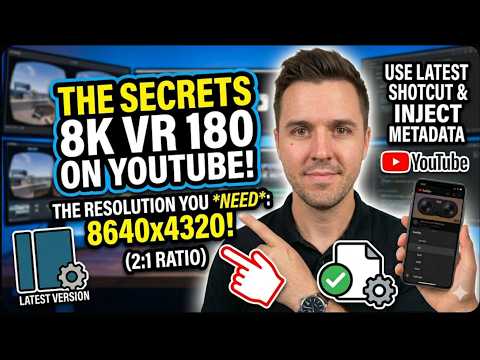
How to get 8K VR 180 videos to upload and render on YouTube properly as 8K, with Shotcut latest version – got it working, don’t forget to inject the VR 180 metadata!
Please subscribe :) youtube.com/geoffmobile
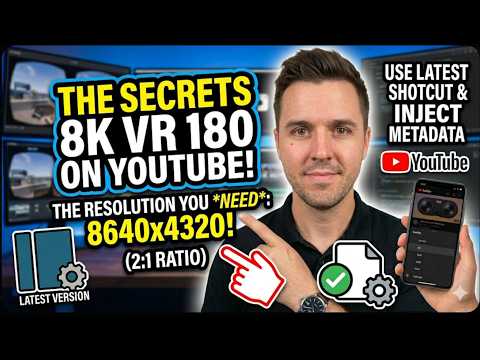
The Trick: For VR180 videos, output and upload the video in 8640*4320 resolution. 2:1 ratio for VR 180 videos.
Using 8640*4320 resolution, Youtube will recognize the video as 8K (if it doesn’t after 2 days, delete the video from Youtube and re-upload).
Shotcut Video Editor (free) (Latest version supports 8640×4320 exports):
www.shotcut.org/
Here’s my tutorial:
How to Edit VR 180 3D videos in Shotcut, Free Video Editor, and adding titles in VR 180 properly
geoffmobile.com/blog/how-to-edit-vr-180-3d-videos-in-shotcut-free-video-editor-and-adding-titles-in-vr-180-properly
Thanks for watching,
Geoff
geoffmobile.com
How to Get YouTube to Recognize Your Video as 8K
Hi everyone, hope you’re doing great. This is Geoff from geoffmobile.com. Today I’m going to do a quick post for anyone out there who is a YouTube creator wondering: how do I get YouTube to recognize a video as 8K resolution when you upload it?
A bit of background first. If you are making videos on YouTube, you may have a fancy camera that can record in 8K, or you may want to upscale a video to 8K to preserve the quality. If you’re making VR180 videos — a certain kind of 360° or VR format — your camera may be shooting in 5.7K, but YouTube only offers 4K or 8K. So if you upload a 5.7K video, it’s going to be downgraded to 4K.
Instead, you may want to upscale it to 8K to render the full quality that you actually shot with your camera. That’s exactly why I want to make 8K videos on YouTube. I’ll upscale my 5.7K footage and render it out as 8K, then upload it to YouTube and have it recognized properly as 8K in the YouTube player. This looks a lot better on virtual reality headsets like the Quest 3, or on computers with high-end monitors, where you really want to take advantage of that 8K resolution.
So here’s the trick I found, which I’ve validated myself with my own videos.
If you have a VR180 video — a special kind of 3D/VR video — these videos have a 2:1 aspect ratio, meaning the width is two times the size of the height. The specific resolution you need to upload is:
8640 × 4320
Any good video editor should be able to export at this resolution. I recently contributed to an open source video editor called Shotcut, which now supports exporting at exactly 8640 × 4320. (I have a separate tutorial showing how to make VR180 videos in Shotcut.) If you use any lower resolution, YouTube may not recognize your video as 8K.
One more tip: even if you upload at the correct resolution, you may find that after two days it still hasn’t appeared as 8K. The only solution I’ve found is to delete the video from YouTube entirely and re-upload it at 8640 × 4320. This happened to me with a personal video of my son’s piano recital — the first upload wasn’t recognized as 8K, but after deleting and re-uploading, it was. When I go to that video in YouTube and choose the quality setting, it now lets me select 4320p, which is the 8K option.
A note on upscaling in Shotcut: you don’t need a separate upscaling step. Simply set your project’s target resolution to 8640 × 4320 and Shotcut will automatically upscale your footage as part of the export process. If your video editor doesn’t support this resolution, you can also use a tool like FFmpeg to upscale your video before uploading.
I’ll include the resolution details below, along with a link to Shotcut and my previous VR180 tutorial. I think VR180 is still a great format for 3D content that people can experience with their headsets — I definitely recommend trying it.
Thanks for reading! If you have any questions, leave them in the comments below. I’ve had at least one successful upload that worked, so I know it is possible. If it doesn’t work on the first try, just re-upload and it should pick it up. Good luck with your 8K videos!
Related Posts:

Steppin’ Out by Joe Jackson – Live Cover by Geoff Peters (vocals, piano) at Pleasant Mountain Music
Boy From Ipanema (Japanese Lyrics) – Kevin and Geoff – live performance VR 180
Geoff sings All of Me Karaoke jazz scat solo at Pacific Soul Choir Open Mic at Chorus Studio VR 180
How to Watch Movies on your Oculus Quest in VR Virtual reality – 4 different ways – by geoffmobile
Man in the Mirror by Michael Jackson (Cover) – Performed by Geoff Peters at Pleasant Mountain Music